How to Reply Back on Phone Link App Like a Pro 2025
In today’s fast-paced world, staying connected without constantly switching between devices is a game-changer. Picture this: You’re deep into a work session on your Windows PC, and a text message pops up from a friend or colleague. Instead of reaching for your phone, you reply seamlessly using your full-sized keyboard, all without missing a beat. That’s the magic of the Phone Link app, Microsoft’s innovative tool that bridges your smartphone and computer. Whether you’re an Android user enjoying robust features or an iPhone enthusiast tapping into essential messaging, mastering how to reply back on Phone Link app can boost your productivity and keep your communications flowing effortlessly.
This comprehensive guide dives deep into every aspect of using Phone Link for messaging. We’ll cover setup, replying techniques, keyboard usage, and more, ensuring you have all the tools to make the most of this app. By the end, you’ll be replying like a pro, saving time and reducing distractions. Let’s get started!
What is the Phone Link App?
The Phone Link app is a free application developed by Microsoft that allows you to sync your smartphone with your Windows PC. It essentially turns your computer into an extension of your phone, enabling you to handle calls, messages, photos, and even some apps directly from your desktop or laptop. Launched as a way to integrate Android devices with Windows, it has evolved to include limited support for iPhones, making it a versatile option for cross-device users.
At its core, Phone Link focuses on seamless connectivity. For messaging, it lets you view incoming texts in real-time, reply quickly, and manage conversations without touching your phone. This is particularly useful for professionals who spend hours at a desk, students juggling assignments, or anyone who prefers typing on a physical keyboard over a touchscreen. The app uses Bluetooth or Wi-Fi to maintain the connection, ensuring low latency for smooth interactions.
One standout feature is its integration with Windows notifications, so messages appear as pop-ups on your PC screen. This means you can stay in the flow of your work while keeping up with personal or urgent communications. However, features vary by device type: Android users get fuller access, including photo syncing and app mirroring, while iPhone support is more notification-based. Understanding these basics sets the foundation for exploring how to reply back on Phone Link app effectively.
System Requirements for Using Phone Link
Before diving into setup, it’s crucial to ensure your devices meet the necessary specifications. For Windows PCs, you’ll need Windows 10 (with the May 2019 update or later) or Windows 11. Your computer must also support Bluetooth Low Energy (BLE) for reliable pairing, especially with iPhones. If you’re unsure, check your PC’s settings under Devices > Bluetooth & other devices.
On the smartphone side, Android devices should run Android 7.0 (Nougat) or later, with the Link to Windows app installed from the Google Play Store. For iPhones, iOS 15 or higher is required, and you’ll use the Link to Windows app from the App Store (version 1.23031.2 or newer recommended). Both setups benefit from the latest OS updates to avoid compatibility issues.
Additionally, ensure both devices are on the same Wi-Fi network for optimal performance, though Bluetooth is the primary connector for iPhones. No special hardware is needed beyond standard Bluetooth capabilities, but a stable internet connection helps with initial setup and feature syncing. Meeting these requirements ensures a smooth experience when learning how to use a Phone Link for replying to messages.
How to Set Up Phone Link on Android and Windows
Setting up Phone Link with an Android device is straightforward and unlocks a wealth of features. Start by downloading the Phone Link app on your Windows PC from the Microsoft Store if it’s not already installed (it’s pre-installed on many Windows 11 machines). On your Android phone, install the Link to Windows app from the Play Store.
Launch Phone Link on your PC and select “Android” as your device type. You’ll be prompted to scan a QR code displayed on your PC screen using your phone’s camera through the Link to Windows app. Once scanned, grant permissions on your phone for contacts, messages, calls, and notifications. This step is key for enabling messaging features.
After pairing, toggle on the necessary features in Phone Link’s Settings > Features, such as allowing message syncing and notifications. Test the connection by sending a message from your phone and checking if it appears on your PC. If everything works, you’re ready to explore how to text with Phone Link. The entire process usually takes under 10 minutes, but restarting both devices can resolve any hiccups.
For advanced users, enable app mirroring to run phone apps on your PC, which indirectly enhances messaging by allowing direct access to your phone’s native messaging app if needed. Remember, Android setup provides more persistent message history compared to iOS, making it ideal for heavy texters.
How to Set Up Phone Link on iPhone and Windows
iPhone integration with Phone Link is a bit more limited but still powerful for basic messaging. Begin by ensuring your PC has Bluetooth enabled and is running a compatible Windows version. Download Phone Link on your PC if needed, and get the Link to Windows app on your iPhone from the App Store.
Open Phone Link on your PC and choose “iPhone” under the device selection. A QR code will appear—scan it with your iPhone’s default camera app. This initiates Bluetooth pairing. On your iPhone, go to Settings > Bluetooth, find your PC, and tap the info (i) icon. Enable “Show Notifications” and “Sync Contacts” to allow message access.
In Phone Link, confirm the pairing and grant any additional permissions for notifications and messages. Note that for iPhones, message history is only available while connected via Bluetooth—if you disconnect, the history clears. This setup emphasizes real-time notifications over archived conversations.
Once connected, test by receiving a message on your iPhone and seeing it pop up in Phone Link. If issues arise, unpair and re-pair via Bluetooth settings on both devices. This configuration is perfect for users who primarily need to know how to reply to messages on message app without full syncing.
How to Access Messages in Phone Link
Once set up, accessing your messages is simple. Launch the Phone Link app on your PC, and navigate to the “Messages” tab on the left sidebar. Here, you’ll see a list of your recent conversations, synced from your phone.
For Android users, messages load automatically, including history from before the connection. iPhone users will only see messages received while actively connected. Notifications for new messages appear as Windows alerts, clickable to jump straight into the conversation.
To search for specific messages, use the search bar at the top of the Messages section. This is handy for finding old threads quickly. If you’re wondering how to use a Phone Link for group chats, note that Android supports viewing them, but iPhone does not allow creating or replying to groups via the app—you’ll need your phone for that.
Customizing notifications is easy: Go to Settings > Features > Messages and toggle options like “Allow notifications” or “Sync message history.” This ensures you’re alerted without overwhelming your screen. Mastering access is the first step toward efficient replying.
How to Reply Back on Phone Link App
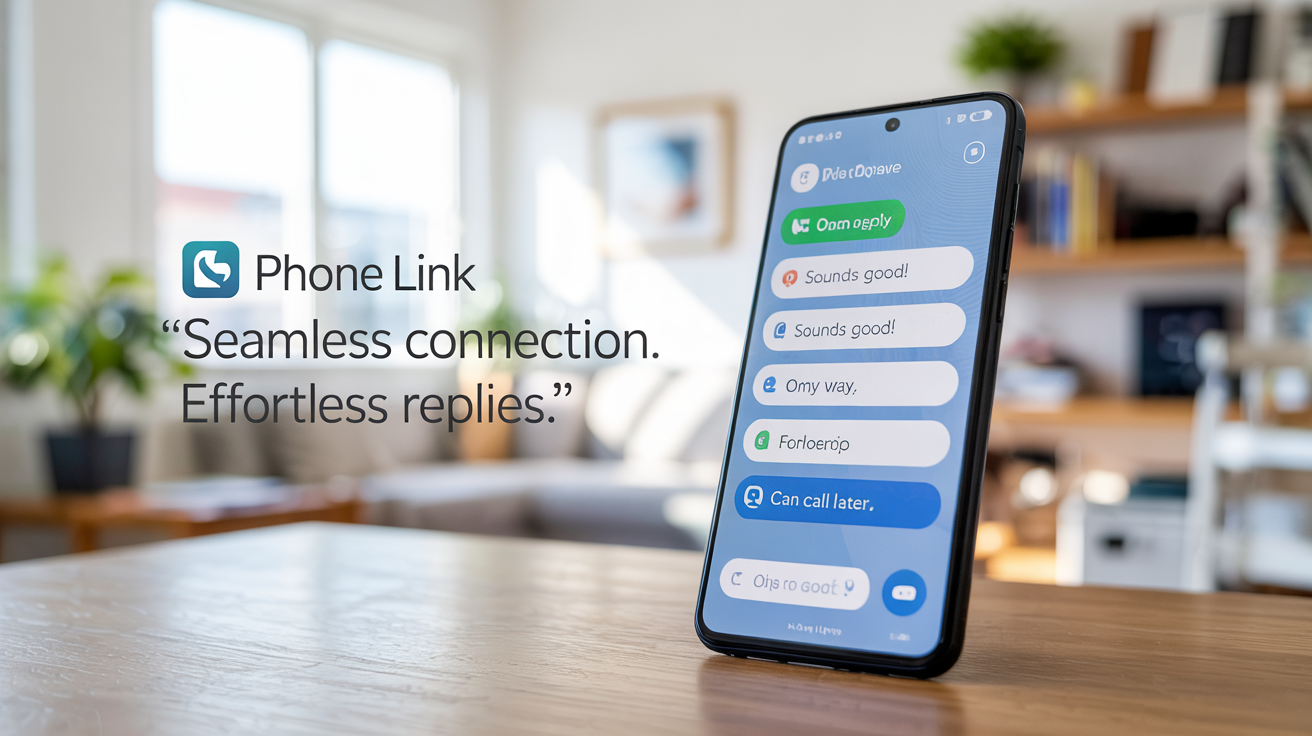
Replying back on Phone Link app is where the convenience shines. When a message arrives, click the notification or open the conversation in the Messages tab. The chat window displays the thread, with a text box at the bottom for your response.
Type your reply using your PC’s keyboard—it’s faster and more accurate than phone typing. Hit Enter or click the send arrow to dispatch it. For Android, replies sync instantly; for iPhone, ensure Bluetooth is active.
Enhance your replies with formatting: While basic text is standard, you can add line breaks for better readability. If the message includes questions, address them directly for clear communication. Phone Link also supports replying to SMS, MMS (on Android), and iMessages (on iPhone), though media replies are limited on iOS.
A pro tip: Use keyboard shortcuts like Ctrl+Enter to send quickly. If you’re handling multiple conversations, switch tabs easily. This method transforms how to reply back on Phone Link app into a productivity booster, especially during multitasking.
How to Text with Phone Link: Starting New Conversations
Beyond replying, initiating texts is effortless. In the Messages tab, click “New message” at the top. Enter a contact’s name or phone number in the “To” field—Phone Link pulls from your synced contacts for suggestions.
Once selected, type your message in the box below. Add flair with emojis by clicking the smiley icon, searching for options like thumbs up or hearts. For Android, you can attach photos or files if permitted; iPhone limits this to text only.
Send by pressing Enter or the send button. The conversation saves in your list for future access. This feature is great for proactive communication, like scheduling meetings or checking in with family.
If starting a group chat, Android users can add multiple recipients, but iPhone users must use their phone. Practice this to fully grasp how to text with Phone Link, making your PC a central hub for all messaging.
How to Use Keyboard in Phone Link for Efficient Typing
The real advantage of Phone Link is leveraging your PC’s keyboard for typing. In any open conversation, simply click the text box and start typing. Full-sized keys allow for faster, error-free responses, ideal for lengthy messages.
Customize your experience: Use autocorrect if enabled in Windows, or install third-party keyboard software for advanced features like macros. Shortcuts enhance efficiency—Ctrl+B for bold (if supported in the chat), or Alt+Tab to switch between apps while replying.
For multilingual users, switch languages via Windows settings, and Phone Link will adapt. If you’re on a laptop, the touchpad can help with quick navigation. This setup answers how to use keyboard in Phone Link, turning mundane texting into a streamlined process.
Voice-to-text is another gem: Click the microphone icon (if available) to dictate replies hands-free. Combine this with keyboard edits for perfection. Over time, you’ll find your typing speed doubles, reducing phone dependency.
Advanced Features for Replying in Phone Link
Take your replying to the next level with advanced tools. Phone Link includes AI-powered suggested replies for Android users—when a message arrives, three contextual options appear above the text box. Select one to send instantly, powered by cloud analysis for relevance.
Emojis and reactions add personality: Click the emoji button to insert, or react to messages with likes or hearts (Android only). For security, note that sensitive data like 2FA codes sync, so use a secure PC.
Integration with Windows Clipboard lets you copy-paste text seamlessly. If connected, view phone photos in replies (Android). iPhone users get basic notifications but can reply text-only.
Explore settings for dark mode or font size adjustments for comfort. These features elevate how to reply to messages on message app, making Phone Link indispensable.
Troubleshooting Common Issues with Replying in Phone Link
Even the best apps have hiccups. If messages don’t appear, check Bluetooth/Wi-Fi connections and restart both devices. For syncing issues, toggle message features in Settings > Features.
If replies fail to send, ensure permissions are granted on your phone. Android users: Update apps; iPhone: Re-pair via Bluetooth. Notification problems? Verify “Show Notifications” in iPhone settings.
For AI suggestions not showing, confirm you’re in a Windows Insider preview or wait for rollout. If history vanishes on iPhone, reconnect Bluetooth—it’s by design.
Report persistent issues via Phone Link’s feedback tool. These fixes keep your replying smooth.
FAQs About Using Phone Link for Messaging
Q: Can I reply to group messages on Phone Link?
A: Android yes, but not create new ones. iPhone no—use your phone.
Q: Does Phone Link support emojis in replies?
A: Yes, via the emoji menu in the text box.
Q: What if my message history disappears?
A: On iPhone, it’s normal when disconnected. Reconnect to restore.
Q: Is AI reply available for iPhone?
A: Currently Android-only.
Q: Can I attach files when replying?
A: Android yes; iPhone no.
Q: How secure is replying via Phone Link?
A: Uses encrypted Bluetooth/Wi-Fi, but avoid public PCs for sensitive info.
Q: Why won’t my keyboard work in Phone Link?
A: Ensure focus is on the text box; restart if needed.
Q: Can I use Phone Link offline?
A: Limited—needs connection for real-time syncing.
Conclusion: Master Your Messages with Phone Link Today
As we’ve explored, learning how to reply back on Phone Link app opens a world of convenience, from quick keyboard taps to AI-assisted responses. Whether you’re setting up for the first time or troubleshooting a glitch, this guide equips you to handle every scenario. Imagine the time saved, the focus gained—it’s not just an app; it’s a lifestyle upgrade.
Don’t stop here: Dive in, experiment with features, and make Phone Link your go-to for seamless communication. Your productivity will thank you. What’s your next message? Reply smarter, starting now!